
How to Download and Install the Fun88 App on Android and iOS: Device Requirements and Step-by-Step Guide 2026
Installing correctly from the start keeps the Fun88 app running smoothly — especially on iOS, where the trust permission step is the easiest to miss.
Tried downloading the app but aren't sure if your phone meets the requirements, or it installed fine and then just throws an error when you open it? These are the two most common problems first-time users run into with a betting platform's mobile app. This guide goes straight to the process — from checking your device to successfully opening the app for the first time — with the iOS installation explained in more detail, since that's where most people get stuck.

Fun88 is an online betting platform that has been operating since 2008, licensed by PAGCOR Philippines and the Isle of Man GSC. The mobile app is available for both Android and iOS, covering the full lineup from sports and esports to live casino and slots — you don't need to open a browser every time you log in.
Check Your Device Before Downloading
Skipping this step is the number one reason an app installs but won't open. The minimum requirements are as follows:
| Criteria | Android | iOS |
|---|---|---|
| OS version | Android 8.0 or later | iOS 12 or later |
| Minimum free storage | 150–200 MB | 150–200 MB |
| App size (after install) | approx. 120–180 MB + ~20–50 MB cache | approx. 120–180 MB + ~20–50 MB cache |
| Recommended network speed | 3G / 2–5 Mbps or higher | 3G / 2–5 Mbps or higher |
If your phone runs Android 7 or iOS 11 and below, the app may install but stability isn't guaranteed. A quick way to check: go to Settings → About Phone → Software Information. Once you've confirmed your device qualifies, you can proceed with the download.
Installing the Fun88 App on Android
Since Google Play doesn't distribute betting apps, the APK file is downloaded directly from the operator's website. The process has 4 steps:
- Go to the homepage — Open a browser on your phone and head to Fun88link to get the official app download link, and avoid using links from unknown sources.
- Tap "Download Android App" — Press the download button; your browser will ask you to confirm the APK download. Choose Download.
- Allow installs from unknown sources — When you open the APK file, Android will ask you to enable "Allow from this source" in the security settings. After installation, you can turn this permission back off if you like.
- Log in or sign up — Open the app, enter your existing account, or create a new one through the Fun88 registration page.
The whole download and installation usually takes 1–3 minutes depending on your network speed. On Wi-Fi or 4G/5G, pages within the app load in roughly 1–2 seconds.
Installing the Fun88 App on iOS — The Trust Permission Step
This part is trickier than Android because Apple requires an extra step to verify the developer profile. Many people install the app but only see a "Untrusted Developer" message when they open it — skipping the steps below is the usual cause.
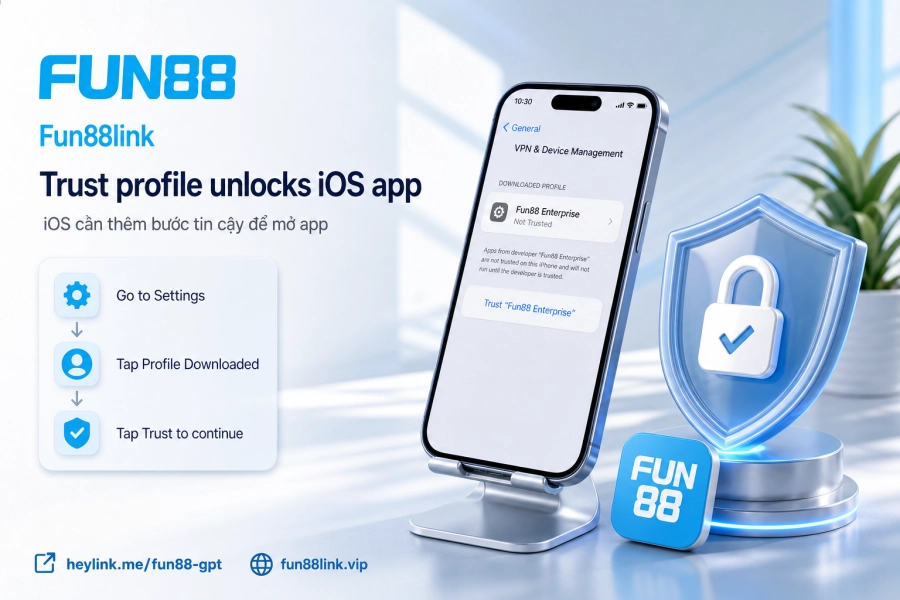
Follow these steps in order:
- Visit the Fun88 site on Safari — Use Safari rather than Chrome to avoid IPA file download conflicts on iOS.
- Tap "Download iOS App" → press Download App → confirm the install when the dialog box appears.
- Wait for installation to finish — The app icon appearing on your home screen means the file has been installed.
- Grant trust permission — This step is mandatory: go to Settings → General → VPN & Device Management (or Device Management, depending on your iOS version). Find the China Mobile Internet entry, tap it, then select Trust.
- Open the app — Return to the home screen and tap the Fun88 icon. This time the app will launch normally.
Practical note: on iOS 16 and later, the device management section sometimes stays hidden if you've never installed a profile before. If you can't see it, try reinstalling the app once more and check the General settings again — the profile usually appears after the first install.
Account Security After Logging In
The Fun88 app uses 128-bit SSL encryption for all connections, combined with two-step OTP verification when logging in from a new device. Your session automatically ends after 10–15 minutes of inactivity — this feature reduces risk if you leave the screen open in a public place.
One convenient feature many people overlook: the app lets you log out and switch to another account on the same device, which is useful when several people in a household share one phone. To keep your account secure long term, change your password every 30–60 days — especially after using public Wi-Fi. For more details on the protection layers in place, see the Fun88 privacy policy.
App Updates and Troubleshooting Common Issues
The app is updated roughly every 1–2 months, and each update takes under 2 minutes. On Android, an update notification appears as soon as you open the app; on iOS, you sometimes need to re-download the IPA file from the latest link on the operator's website, since the App Store doesn't distribute the updates.
The three most common issues and quick fixes:
- App lagging or loading slowly: Clear the cache in the app settings (Android), or delete and reinstall the app (iOS). Accumulated cache can reach 20–50 MB after prolonged use.
- Can't log in after an update: Log out completely, clear the cache, then reopen the app. If the problem persists, contact Fun88 customer support via live chat.
- Blank screen on launch: Usually caused by a network slower than 3G. Switch to Wi-Fi or 4G, then reopen the app.
Once installed and logged in, you can access the full lineup — from Sports betting to Esports — without opening a browser or retyping the address each time. That's the whole point of a mobile app: cutting out steps from step one, not adding complicated ones.